
Most people do not think about backups until something goes wrong: a dropped laptop, a failed drive, a stolen phone, or a message demanding payment to unlock files. By then it is too late. A backup plan made in advance takes about an afternoon, and the 3-2-1 rule gives you a simple structure.
What the rule says
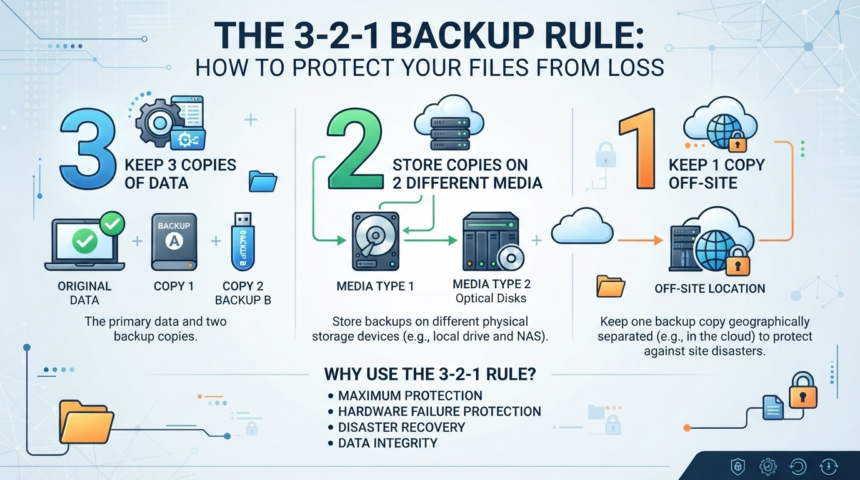
- 3 copies of your data: the original plus two backups.
- 2 different types of storage: for example, your computer and an external drive, so a single kind of failure cannot take everything.
- 1 copy offsite: stored somewhere else, such as a cloud backup service or a drive kept at another location, so a fire, flood, or theft at home does not destroy every copy.
Some experts add an extra layer: keep one copy offline or unchangeable, and test your restores regularly.
Sync is not backup
Cloud sync tools mirror changes across devices. If you delete a file or ransomware encrypts it, that change may sync everywhere. A backup keeps older versions and lets you go back. Many services offer both, so check which one you are using.
What to back up
- Photos and videos
- Documents, spreadsheets, and creative projects
- Tax and financial records
- Email archives and contacts if you keep them locally
- Anything that would be hard or impossible to recreate
You do not need to back up programs, which can be reinstalled.
Your backup options
| Option | Pros | Cons |
|---|---|---|
| External hard drive or SSD | Affordable, fast, you control it | Can fail, be damaged, or be stolen with the computer |
| Network storage at home | Automatic, large capacity | Setup effort, still at home for the offsite issue |
| Cloud backup service | Offsite, automatic, versioning | Ongoing cost, upload time, trust in the provider |
| Cloud sync folder | Convenient across devices | Not a true backup by itself |
| Second drive stored elsewhere | Offsite without a subscription | Needs manual updating |
A setup that works for most households
- Copy one: your files on your computer or phone.
- Copy two: an external drive that backs up automatically with the built-in tool of your operating system.
- Copy three: a cloud backup service, or a second drive that you rotate to a relative’s house or a safe deposit box.
Step-by-step setup
- List the folders that matter.
- Choose your second and third copy locations.
- Turn on automatic backups so you do not rely on memory.
- Encrypt backups that contain sensitive data, and store the password in a [[password-manager-and-passkeys-beginner-setup|password manager]].
- Disconnect or protect at least one backup so ransomware cannot reach it.
- Test a restore by recovering a few files.
- Put a reminder in your calendar to check backups every few months.
Do not forget your phone
Turn on your phone’s built-in backup for photos, contacts, and settings. Before trying new apps, review their permissions using our guide to [[how-to-vet-a-mobile-app-before-installing|vetting a mobile app]].
Common mistakes
- Keeping all copies in the same room.
- Never testing the restore.
- Leaving the backup drive permanently connected without any protection.
- Assuming the cloud is automatically a backup.
FAQ
How often should I back up?
Automatic, continuous, or daily backups are best for active work. Irreplaceable photos deserve extra care.
How much storage do I need?
At least the size of your important data, plus room for versions. Larger is safer.
Is cloud backup safe?
Reputable providers use encryption, but check security features and use strong sign-in protection.
The takeaway
Three copies, two kinds of storage, one offsite, and a restore test. Set it up once, and you will be protected from most everyday disasters. If you are shopping for a new machine, our [[how-to-choose-a-laptop-specs-that-matter|laptop buying guide]] covers storage choices.